How to edit your sermon clips
Every clip can now be changed after it's made, on every plan, including free. Here's each part of the editor and how to use it.
1. Open the editor on any clip
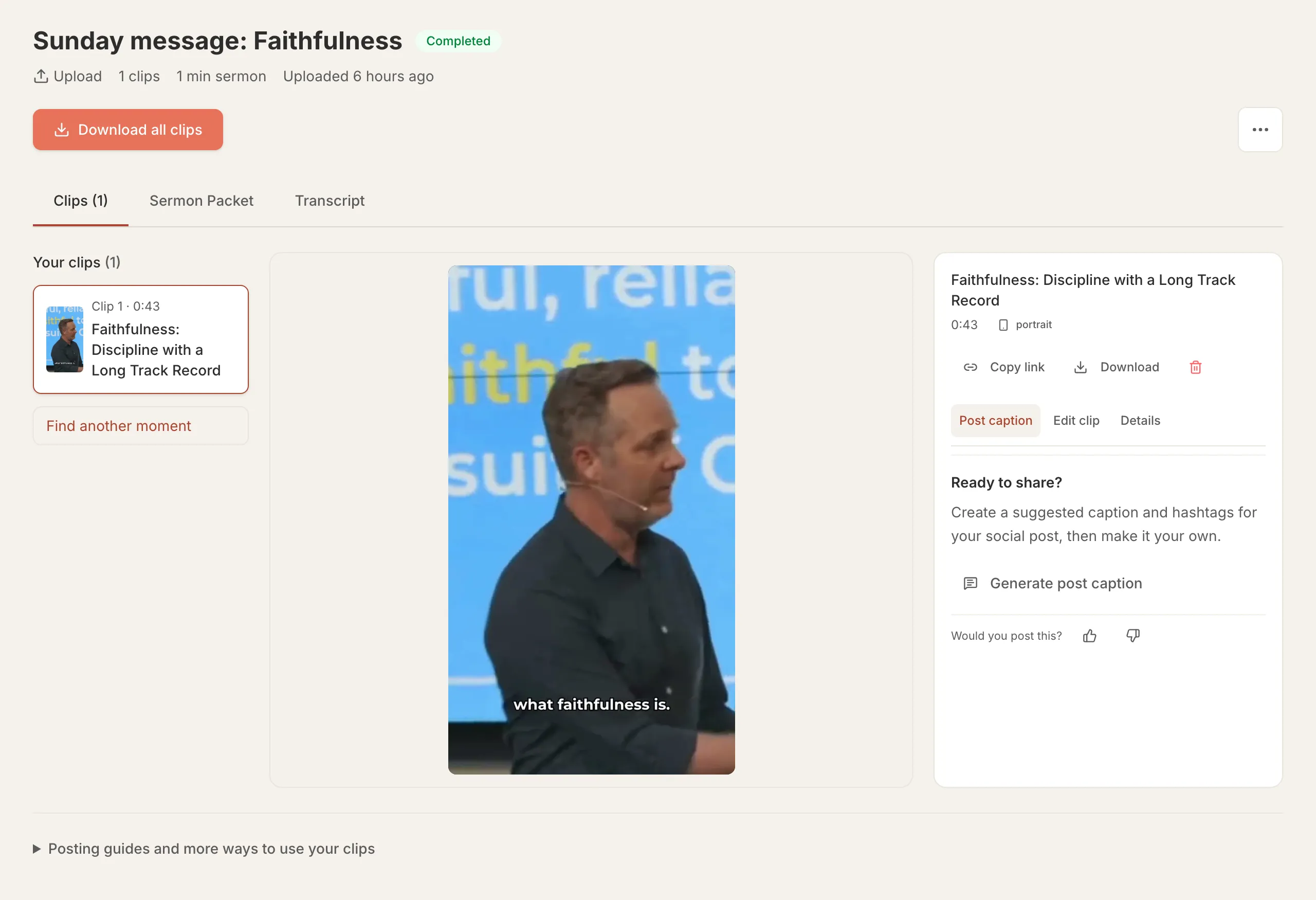
Open a finished sermon from your dashboard and choose a clip. Next to the video, choose Edit clip. (In your clip library the same button is called Adjust start / end.) The editor works on that one clip.
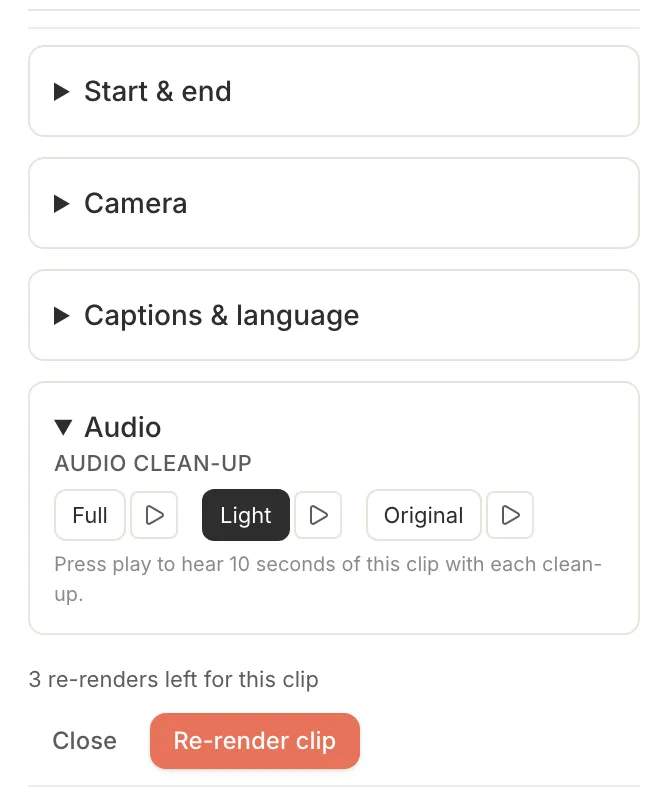
When you're done, choose Re-render clip. Only that clip is re-made, usually in a couple of minutes. The new version replaces the old one on the page, and we email you when it's ready. Each clip can be re-rendered three times.
2. Move the start and end, or finish the sentence
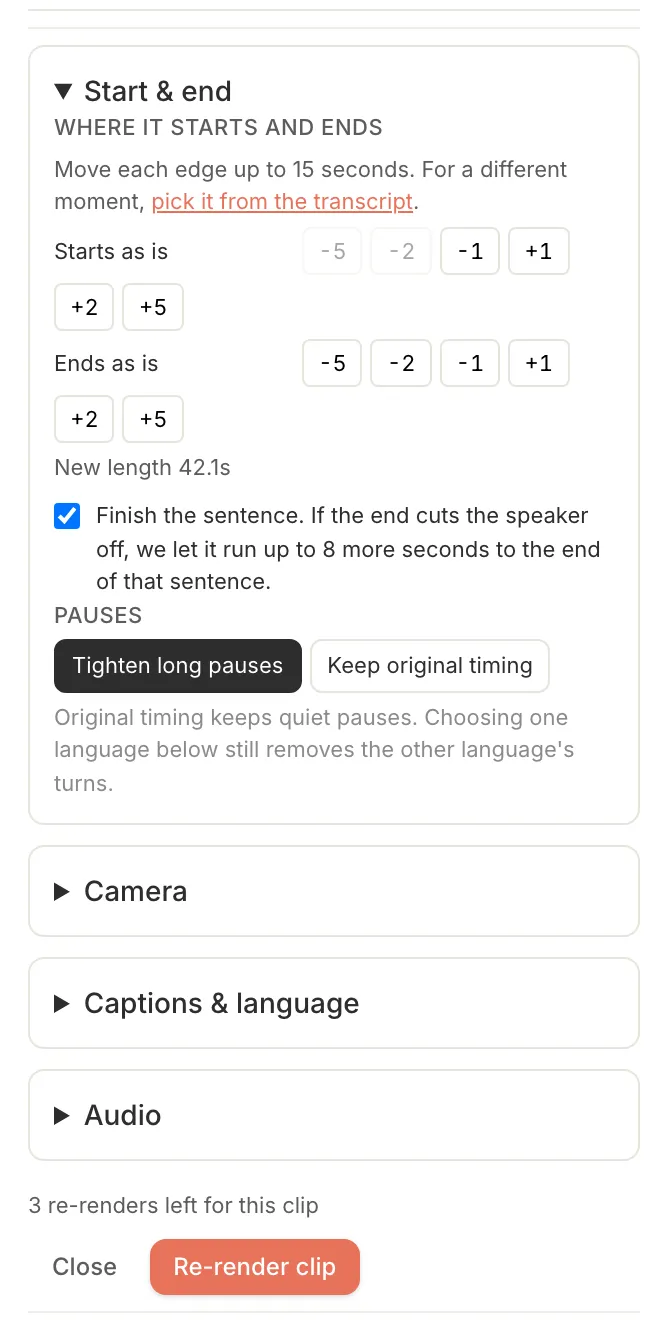
Open Start & end and nudge either edge earlier or later with the -5 to +5 buttons, up to 15 seconds each way.
If a clip stops before the speaker finishes their thought, tick Finish the sentence. We let the clip run up to 8 more seconds, to the end of that sentence, so it doesn't cut off mid-word.
3. Choose who the camera follows
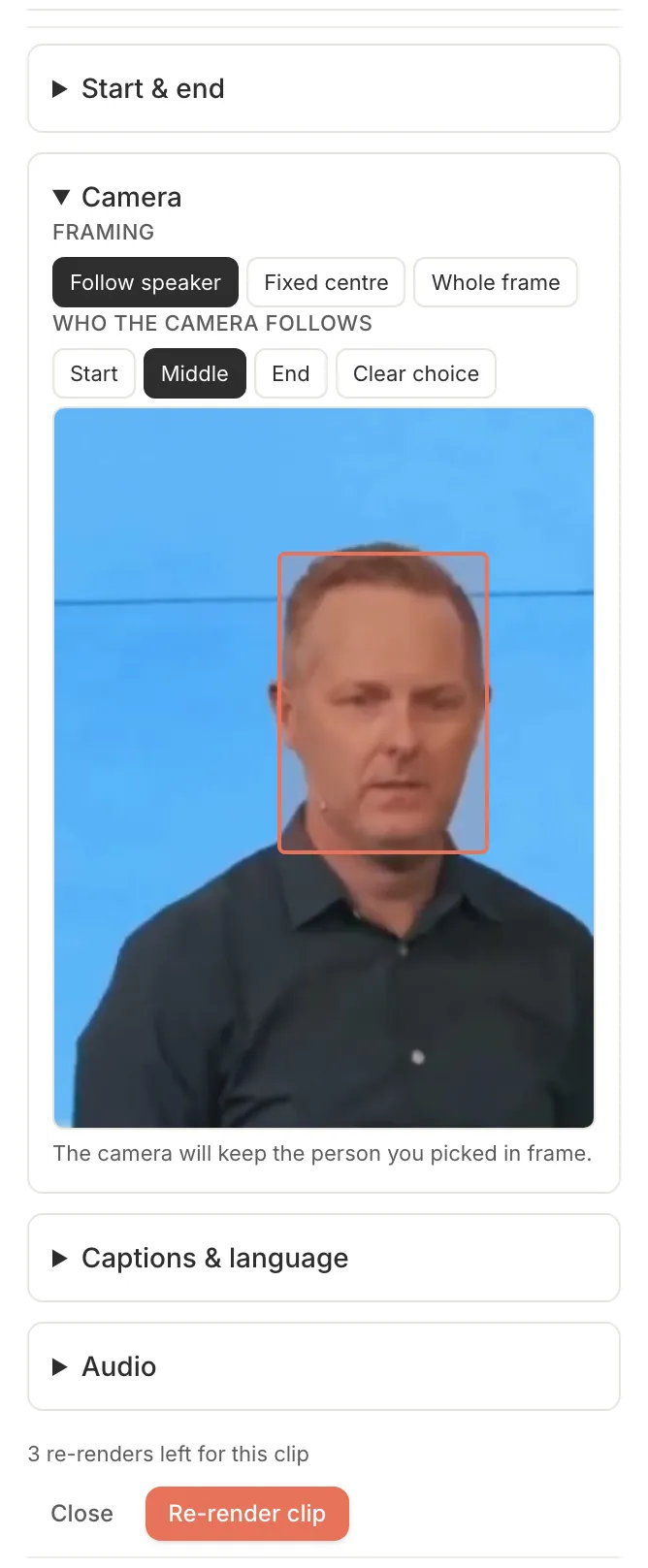
Vertical clips follow the speaker automatically. If the crop follows the wrong person, like a worship leader or someone reading scripture, open Camera, press Choose a person and tap their face on a frame from the start, middle or end of the clip. The clip re-renders following that person.
Under Framing you can also choose Fixed centre (a steady centre column, no tracking) or Whole frame (the full wide shot on a soft background).
4. Captions: on or off, size, position, colour
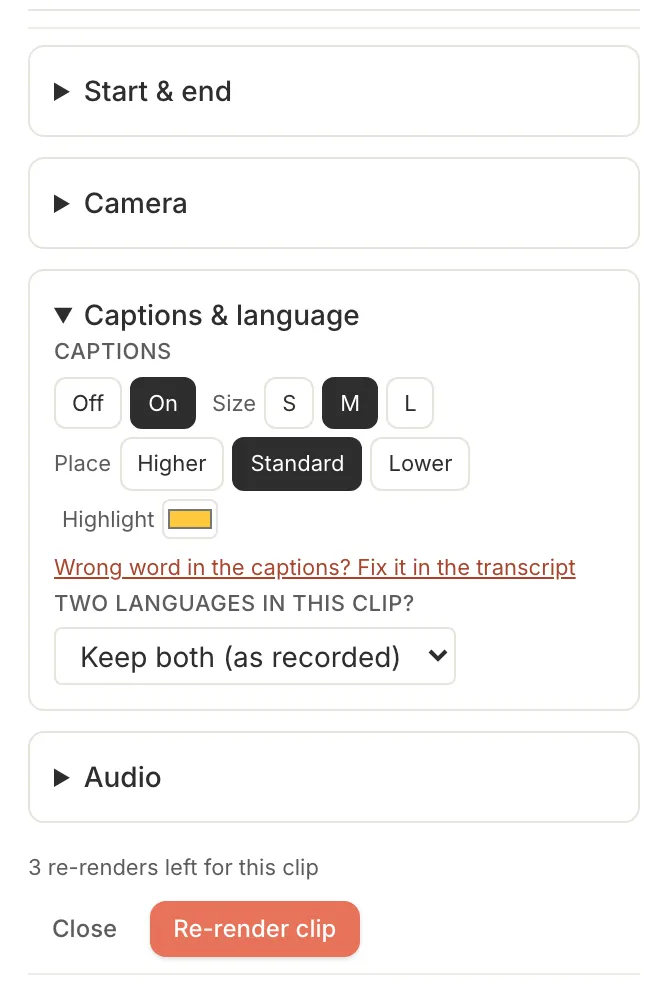
Under Captions & language, turn captions off if you'd rather add your own, or keep them and choose a size (S, M, L), a place on screen (Higher, Standard, Lower) and the highlight colour.
Heard a word wrong? Choose Wrong word in the captions? Fix it in the transcript. It takes you to that clip's words in the transcript, where you correct the word in place, then choose Update captions. A word fix doesn't use up one of the clip's three re-renders.
5. Audio clean-up and pauses
Clips now get a lighter clean-up by default, which evens out loudness and keeps the sound of the room. If your recording is noisy, choose Full for noise reduction. If you want it exactly as recorded, choose Original. Press play on each option to hear 10 seconds of the clip before you re-render.
Under Start & end, Pauses is set to Tighten long pauses: we shorten long silences but keep a natural beat in every pause, so the delivery keeps its rhythm. Choose Keep original timing to leave every pause in.
6. Pick your own moment from the transcript
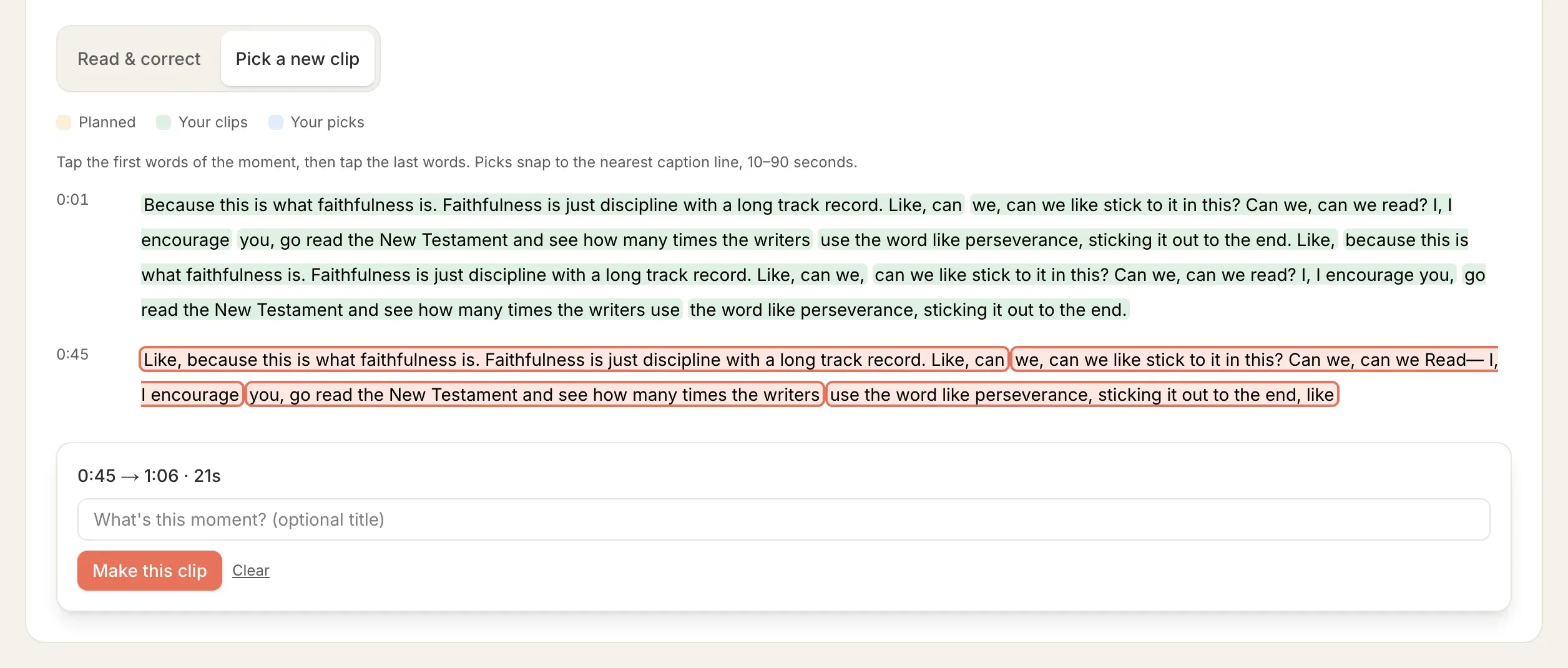
Want a moment we didn't choose? Choose Find another moment under your clips, or open the Transcript tab and choose Pick a new clip. Tap the first words of the moment, then the last words (10 to 90 seconds), give it a title if you like and choose Make this clip. It arrives as an extra clip a few minutes later.
You can pick three extra moments per sermon, for 30 days after you upload it.
7. Other moments we found
When we found more strong passages than made the first cut, they're listed under Other moments we found on the sermon page. Choose one to turn it into a clip. It counts as one of your three picks.
8. Download all clips, and a post caption for each one
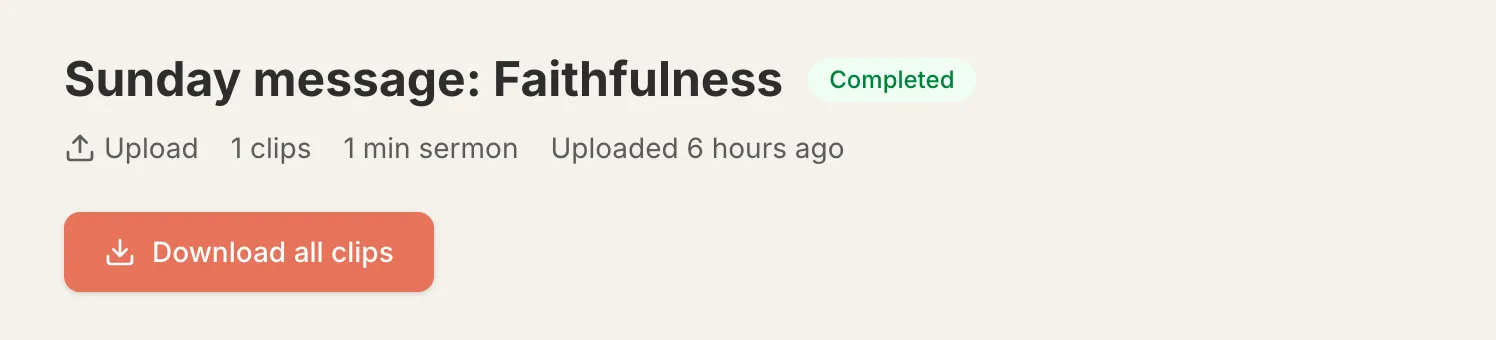
Download all clips saves every clip from the sermon in one zip file. You can still download them one at a time from each clip.
Next to each clip, the Post caption tab has Generate post caption: a suggested caption and hashtags written from what was said in that clip. Copy it and make it your own.
Try it on this Sunday's sermon
Paste a YouTube link or upload the file. Your clips are usually ready in about five minutes, and the editor is waiting under each one.
Upload a sermonFrequently Asked Questions
Can I edit my clips on the free plan?
Yes. Every part of the clip editor works on the free plan: adjusting a clip, finishing a sentence, following a different person, changing captions and audio, picking your own moments and downloading everything at once.
How many times can I change a clip?
Each clip can be re-rendered three times. Fixing a wrong word in the transcript doesn't count toward that. You can also pick three extra moments per sermon, for 30 days after you upload it.
How long does a change take?
Usually a couple of minutes. The new version replaces the old clip on the sermon page and we email you when it's ready.